

One of the easiest ways to keep your tax return moving smoothly is to upload documents to MGA as soon as you receive them, and the good news is, you can do this directly from your phone in just a few taps.
Whether you receive a tax document in the mail, by email, or from another provider, you don’t need to wait until everything is collected. You can upload documents to your MGA client portal in real time, straight from your phone’s camera or photo library.
In this quick tutorial, we’ll show you:
- How to access the MGA portal from your phone browser
- How to bookmark it or create an “app” on your home screen
- How to upload documents and photos as you receive them
Please note that this walkthrough demonstrates the process using an iPhone. If you’re using an Android device, the steps are very similar, and you’ll be able to access the MGA client portal and upload documents in much the same way.
Step 1: Open the MGA Client Portal on Your Phone
On your phone’s web browser (such as Safari or Chrome), navigate to: app.mgallp.com.
This is the direct link to the MGA client portal login page. Once you’re there, log in using your usual credentials.
Step 2: Save the Portal for Easy Access (Highly Recommended!)
To make uploading documents even easier, we recommend saving the portal so it’s always one tap away.
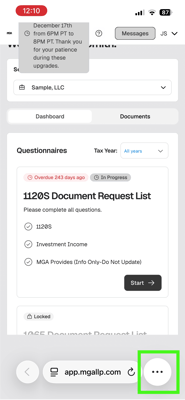
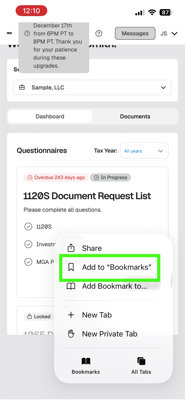
Option 1: Add to Bookmarks
- Tap the three dots (or share icon) in your browser
- Select “Add to Bookmarks”
|
|
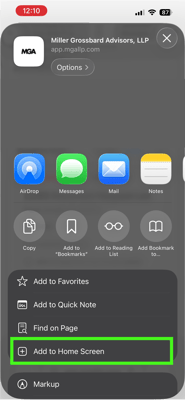
- Tap the three dots (or share icon) in your browser
- Tap Share
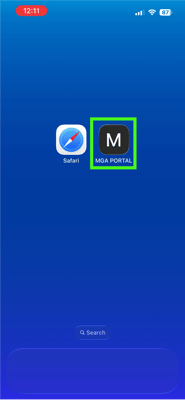
- Scroll down and select “Add to Home Screen”
- Confirm
This creates an icon on your phone that functions like an app. Tapping it will take you directly to the MGA portal login page — no searching, no typing the web address.
|
|

|
|
|
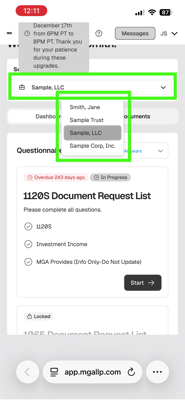
Step 3: Select the Entity You’d Like to Access
Once logged in, you’ll be able to select the entity you want to work in.
If you have access to multiple entities — such as a business, trust, or individual account — simply choose the one you’re uploading documents for.
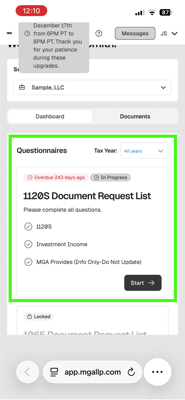
From there, navigate to your Document Request List, where you’ll see the items we’re requesting from you.
|
|
Step 4: Upload Documents Directly From Your Phone
When you’re ready to upload:
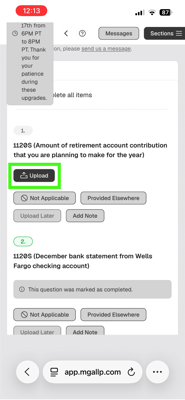
- Click Upload next to the document request
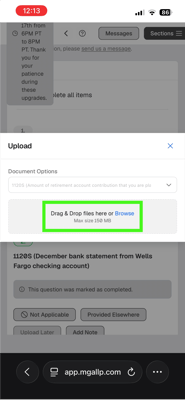
- Select Browse
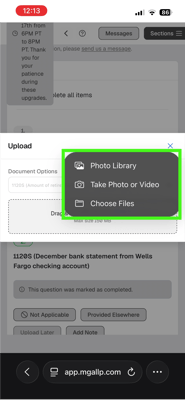
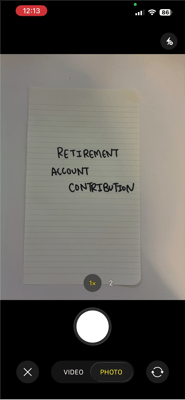
- Choose Take Photo (or select an existing photo or file)
If you received a tax document via email and have it saved in your files, choose to upload a file. If you received a tax document in the mail, you can take a picture of the document on the spot and upload it immediately — no scanner, no computer, no waiting.
|
|
|
|
As you scroll through your Document Request List, you may notice that some sections are marked incomplete and the system won’t allow you to “submit” the entire list yet.
That’s okay, and this part is important.
Important! Every document you upload is sent to our team in real time, even if the full list isn’t finished.
Even if your full Document Request List isn’t complete, every document you upload is sent to our team immediately.
This means:
- The document you just uploaded has already been received
- Our team can begin reviewing and working with that information
- You don’t lose progress by uploading early
We strongly encourage you to upload documents as you receive them, rather than waiting to collect everything first.
Why Uploading Early Matters
Friendly reminder that MGA operates on a first-in, first-out workflow.
The sooner we receive your documents:
- The sooner we can begin work on your tax return
- The sooner you secure your place in our working list
- The smoother and faster the overall process becomes for you
Uploading documents as they arrive — especially from your phone — helps avoid last-minute stress and keeps everything moving efficiently.
Save Time, Reduce Stress, Stay Organized
By saving the MGA portal to your phone and uploading documents right away, you can eliminate paperwork pileups, avoid forgetting documents later, and handle tax tasks in minutes instead of hours.
Snap a photo, upload it, and move on with your day.
Have Questions? Please Ask!
We have an incredible team here who is happy to help you with any questions that may come up. Please don’t hesitate to reach out to us with any questions, via email or phone.
As always, we are here to make the complex simple.


.png)