---
title: How to Review, Sign, and Pay Your Tax Return Through the MGA Client Portal
description: Learn how to review, electronically sign, and complete any required payments for your tax return through your client portal with a short video tutorial and step-by-step guide.
image: https://blog.mgallp.com/hubfs/How%20to%20Review%2c%20Sign%2c%20and%20Pay%20Your%20Tax%20Return%20Through%20the%20MGA%20Client%20Portal-1.png
---
[](http://www.mgallp.com)
- [Client Portal](https://app.mgallp.com/)
- [Pay Your Invoice](https://mgallp.com/pay-your-invoice/)
- [What We Do](https://mgallp.com/your-problem-to-solve/)
- [Who We Help](https://mgallp.com/why-we-are-right-for-you/)
- [Insights](https://blog.mgallp.com)
- [Our Team](https://mgallp.com/our-team/)
- [Careers](https://mgallp.com/join-us/)
- [Let’s Connect](https://mgallp.com/contact-us/)
-
-
-
# **How to Review, Sign, and Pay Your Tax Return Through the MGA Client Portal**
[](http://www.facebook.com/share.php?u=https%3A%2F%2Fblog.mgallp.com%2Fhow-to-review-sign-and-pay-your-tax-return-through-the-mga-client-portal%3Futm_medium%3Dsocial%26utm_source%3Dfacebook) [](http://www.linkedin.com/shareArticle?mini=true&url=https%3A%2F%2Fblog.mgallp.com%2Fhow-to-review-sign-and-pay-your-tax-return-through-the-mga-client-portal%3Futm_medium%3Dsocial%26utm_source%3Dlinkedin) [](https://twitter.com/intent/tweet?original_referer=https%3A%2F%2Fblog.mgallp.com%2Fhow-to-review-sign-and-pay-your-tax-return-through-the-mga-client-portal%3Futm_medium%3Dsocial%26utm_source%3Dtwitter&url=https%3A%2F%2Fblog.mgallp.com%2Fhow-to-review-sign-and-pay-your-tax-return-through-the-mga-client-portal%3Futm_medium%3Dsocial%26utm_source%3Dtwitter&source=tweetbutton&text=How%20to%20Review%2C%20Sign%2C%20and%20Pay%20Your%20Tax%20Return%20Through%20the%20MGA%20Client%20Portal) [](mailto:?subject=Check%20out%20https%3A%2F%2Fblog.mgallp.com%2Fhow-to-review-sign-and-pay-your-tax-return-through-the-mga-client-portal%3Futm_medium%3Dsocial%26utm_source%3Demail%20&body=Check%20out%20https%3A%2F%2Fblog.mgallp.com%2Fhow-to-review-sign-and-pay-your-tax-return-through-the-mga-client-portal%3Futm_medium%3Dsocial%26utm_source%3Demail)
6 min read
When your tax return is ready, you’ll receive an email letting you know it has been uploaded to your **[MGA Client Portal](https://app.mgallp.com/)**. From there, you’ll be able to securely review your return, electronically sign your e-file authorization forms, and complete any required tax payments.
To make the process as simple as possible, we’ve included a short video walkthrough below that shows you exactly what to expect. If you prefer written instructions or would like to follow along at your own pace, you’ll find a detailed guide below the video outlining each step.
### Accessing Your Tax Return in the Client Portal
When your tax return is ready, you’ll receive an email from Miller Grossbard Advisors, LLP (sent from noreply@withsoraban.com) letting you know it has been uploaded to your client portal.
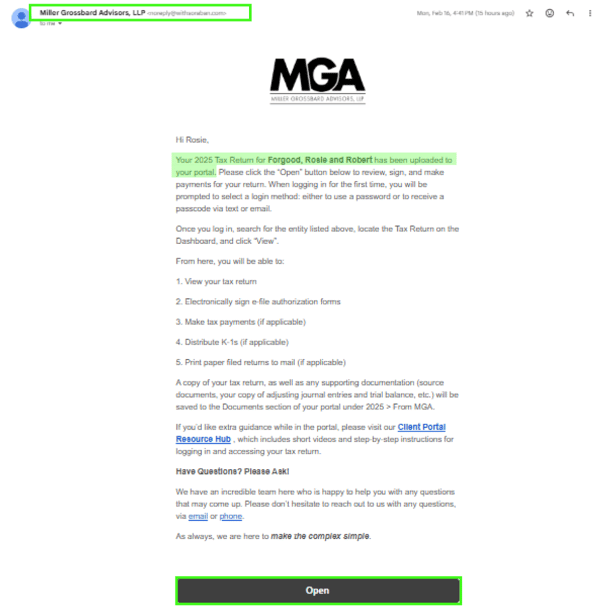
Scroll to the bottom of that email and click the "Open" button. This will take you directly to your portal, where you can review, sign, and complete any required payments for your return.
[](https://blog.mgallp.com/hs/cta/wi/redirect?encryptedPayload=AVxigLICEmBmAwdVLJs5psaAr4T7rfmFq05EVetdWaWC%2FmrQY7FXKVVlZSvIo8Zv2ja%2B33XzOa7DLmlURBb9XRNswMH4dFP8KzLhdGq1HaCpdVfem4sIMvWndDlUl5TttwGMD7SpVApj8KZXGcpWzlKYOgp9OI5uSXhieWal&webInteractiveContentId=202321748851&portalId=3977191)
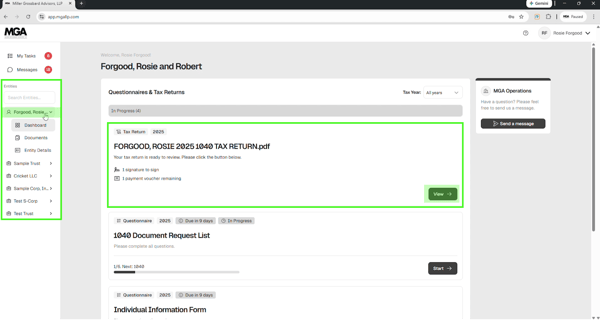
After signing in you'll be taken into your most recently access entity. If the return you're looking for belongs to a different entity, simply select the appropriate name from "Entities" list. Once inside the correct entity, you'll see a notification that your tax return is ready to review. Click "View" to open your return.
###  **Identity Verification (If Prompted)**
The first time you sign a tax return each year, you may be asked to verify your identity before proceeding. This is a secure, once-per-year process designed to protect your information.
If prompted, simply follow the verification steps shown on screen. Need a quick walkthrough?
[](https://blog.mgallp.com/hs/cta/wi/redirect?encryptedPayload=AVxigLIfJ6siVv6duyXHPhRRBPhF6MUxEdsvvViarLCEiXWCkES%2BdeWZw%2Ftmw4O4eGi40VjygW7P7vsrpAFZZ0yw0DHRQvB0uLonGTG3s7%2B09vYDfIZ5O%2FRbuinSJ2xjkn0dV6OgS1GNQob3g1i1BoJUW6hKjw8DJVm2mrcUGdlssPbcQMw0%2FLsh5ZMyWqY%2FuBn9MXgs5T6FxcuLJfjrdElP4O2k6YmZIdcufh7ubjvVnhNt1xGqYkD2rTVNDHwj&webInteractiveContentId=208835531825&portalId=3977191)
Once verification is complete, you’ll automatically return to your tax return to continue reviewing and signing.
### **Reviewing Your Return**
At the top of the screen, you’ll see a Tax Summary, which includes your refund amount or balance due.
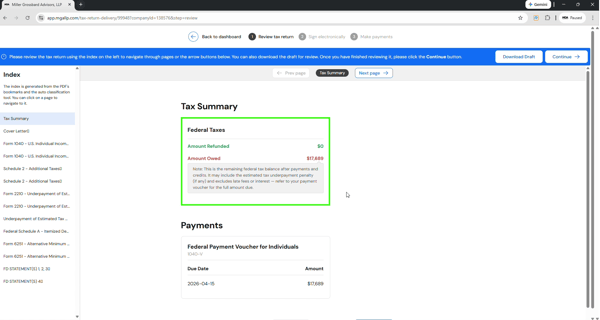
To navigate through your return, you can:
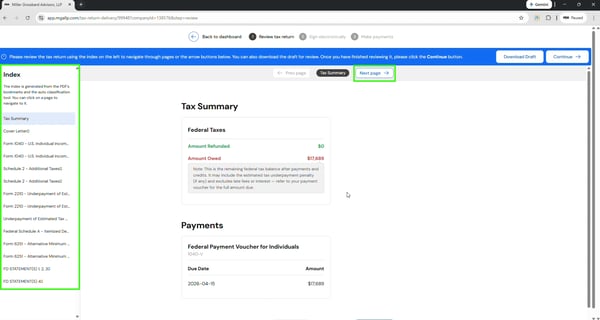
Take your time reviewing each section. You can move forward or jump to different forms as needed.
### **Electronically Signing Your Return**
Once you’ve finished reviewing the return, click "Continue" in the upper right corner to electronically sign your return. Here you will see any e-file authorization forms that need your signature. You may see a Form 8879 or various state forms. Any required signature areas will be clearly highlighted in green. Simply click in the highlighted area to sign.
If your spouse also needs to sign, they will receive their own email notification. Your return will not be marked complete until all required signatures have been submitted.
[](https://blog.mgallp.com/hs/cta/wi/redirect?encryptedPayload=AVxigLLA%2B1xQDkGJZe2SGv7kPqhB26JTe%2Bs%2BRmCVQbuGR3qkxK9AYHMfICwZGhbddN3VLAByDa%2BPPg7JtrQtgIJdJBIWdgIwgdfEXAHcI6PKQd9vQGBKxVltDaz9W%2BDa8KS4oPFhSv9mk1%2BI3YeatD0T8b63A54HYQFxJz44K%2Bi%2F3j3TnLQiTYOmpogcdITW0zW9wuDYSQkEFNaJcfMH9AZfhj%2F2RojHgOo7JBaf%2Faf7XPvPTVkWoSbK%2Fw%3D%3D&webInteractiveContentId=209182942078&portalId=3977191)
### **Making a Tax Payment (If Applicable)**
If a payment is required, you’ll see a "Make a Payment" option.
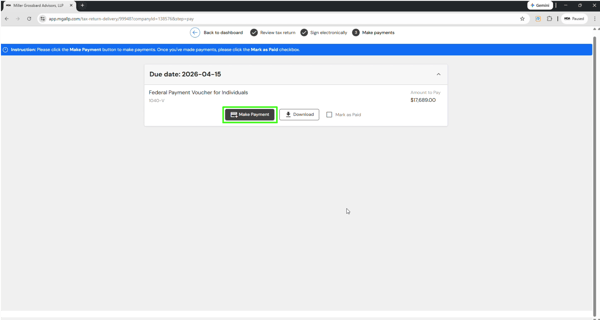
From there, click the payment link to be directed to the IRS website, where you can then choose to pay using IRS Direct Pay or the Electronic Federal Tax Payment System (EFTPS).
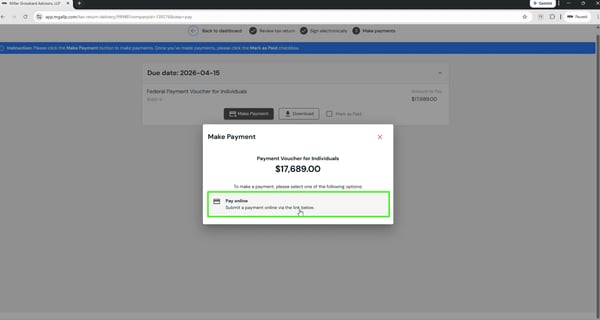
Need help completing your federal tax payment? Review our guides below:
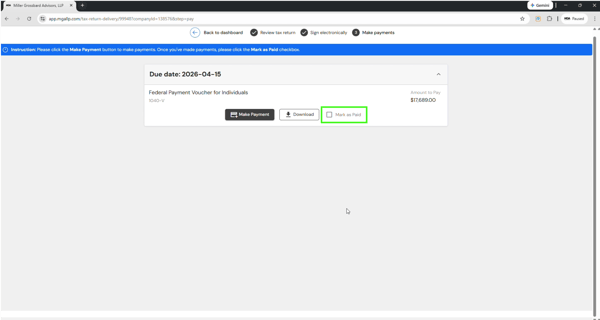
After submitting your payment, return to the portal and mark the voucher as paid to keep your dashboard accurate.
### You’re Done — What Happens Next
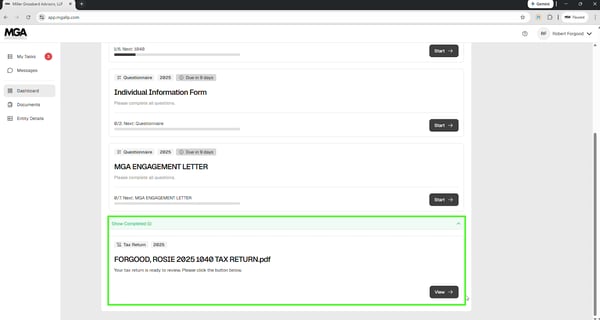
Once all required signatures are submitted and any necessary payments are marked as paid, your return will move to the completed section of your dashboard. At that point, your return has been reviewed, signed by all parties, and paid if applicable.
### Have Questions? Please Ask!
We have an incredible team here who is happy to help you with any questions that may come up. Please don’t hesitate to reach out to us with any questions, via [email](mailto:info@mgallp.com) or [phone](tel:713-622-3960).
As always, we are here to *make the complex simple.*
---
### Stay Connected
Want to stay up to date with our latest blog posts, educational videos, webinars, and more? [**Subscribe for instant notifications**](https://blog.mgallp.com/subscribe-now-instant-notifications) and get new content delivered straight to your inbox.
Prefer a monthly roundup instead? [**Subscribe to our newsletter**](https://blog.mgallp.com/subscribe-now-monthly-newsletter) for valuable insights and resources from our team of experts, all in one place.
And be sure to [**follow us on social media**](https://blog.mgallp.com/follow-mga-on-social-media) for timely updates, expert insights, and exclusive resources to keep you in the loop.
February 18, 2026
Posted in [Client Tutorials](https://blog.mgallp.com/tag/client-tutorials)
### Recent Posts:
[](https://blog.mgallp.com/ready-to-sign-your-tax-return-heres-what-to-know-about-the-irs-required-id-check)
[Ready to Sign Your Tax Return? Here’s What to Know About the IRS-Required ID Check](https://blog.mgallp.com/ready-to-sign-your-tax-return-heres-what-to-know-about-the-irs-required-id-check)
[](https://blog.mgallp.com/how-to-distribute-k-1-packages-through-the-mga-client-portal)
[How to Distribute K-1 Packages Through the MGA Client Portal](https://blog.mgallp.com/how-to-distribute-k-1-packages-through-the-mga-client-portal)
[.png)](https://blog.mgallp.com/how-to-verify-your-identity-to-sign-your-tax-return-once-per-year)
[How to Verify Your Identity to Sign Your Tax Return (Once Per Year)](https://blog.mgallp.com/how-to-verify-your-identity-to-sign-your-tax-return-once-per-year)
[](https://blog.mgallp.com/the-mga-client-portal-resource-hub)
[The MGA Client Portal Resource Hub](https://blog.mgallp.com/the-mga-client-portal-resource-hub)
### Let's Connect
### [(713) 622-3960](tel:(713)%20622-3960)
600 N. Shepherd Drive, Suite 200
Houston, TX 77007
Miller Grossbard Advisors, LLP is an independent member firm of [PrimeGlobal](https://primeglobal.net/), an association of independent accounting firms. PrimeGlobal is one of the five largest associations of independent accounting firms in the world, providing a wide range of tools and resources to help member firms furnish superior accounting, auditing, and management services to clients around the globe.
Miller Grossbard Advisors, LLP places strong emphasis on maintaining the highest level of professional excellence. The Firm is a member of the Employee Benefit Plan Audit Quality Center. We maintain a rigorous quality control system to verify that our auditing practices follow both professional and Firm standards.
Copyright © Miller Grossbard 2026. All Rights Reserved. – [Privacy Policy](https://mgallp.com/privacy-policy/)
```json
{
"@context" : "https://schema.org",
"@type" : "BlogPosting",
"author" : {
"@type" : "Person",
"name" : "MGA Team",
"url" : "https://blog.mgallp.com/author/mga-team"
},
"dateModified" : "2026-03-12T15:31:51.051Z",
"datePublished" : "2026-02-18T03:55:23.000Z",
"headline" : "How to Review, Sign, and Pay Your Tax Return Through the MGA Client Portal",
"image" : [ "https://blog.mgallp.com/hubfs/How%20to%20Review%2c%20Sign%2c%20and%20Pay%20Your%20Tax%20Return%20Through%20the%20MGA%20Client%20Portal-1.png" ],
"mainEntityOfPage" : {
"@id" : "https://blog.mgallp.com/how-to-review-sign-and-pay-your-tax-return-through-the-mga-client-portal",
"@type" : "WebPage"
},
"publisher" : {
"@type" : "Organization",
"logo" : {
"@type" : "ImageObject",
"url" : "https://blog.mgallp.com/hubfs/MGA%2035%20Logo.png"
},
"name" : "Miller Grossbard Advisors, LLP"
}
}
```