

After your tax return has been signed, the next step may be distributing Schedule K-1 packages to the partners or members of the entity. The MGA Client Portal makes this process quick and simple by allowing you to securely send K-1 packages directly from the portal.
To walk you through the process, we’ve included a short video tutorial below. If you prefer written instructions or would like to follow along as you complete the steps, you’ll find the full step-by-step guide below the video.
Step 1: Access the Tax Return in Your Portal
Once you’ve signed your tax return, you’ll have the option to distribute K-1 packages immediately.
But, if you are returning to distribute K-1s later, simply log in to your MGA Client Portal and navigate to the appropriate entity. From the entity dashboard, you’ll see your tax return along with a notification indicating that K-1 packages are ready to be distributed. The dashboard will show how many K-1 packages are available and ready to send.
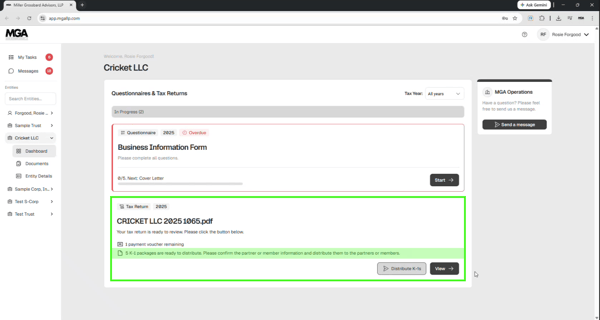
Click the "Distribute K-1s" button to begin.

Step 2: Confirm Partner or Member Email Addresses
The first time you send a K-1 package to a partner or member, you’ll be asked to enter their email address. Once an email address has been entered for a recipient, it will automatically populate in future years, so you won’t need to re-enter it again.
Simply confirm or enter the appropriate email address for each partner or member listed.
Step 3: Send the K-1 Packages
Once the email addresses are confirmed, you can distribute the K-1 packages directly from the portal. You have two options:
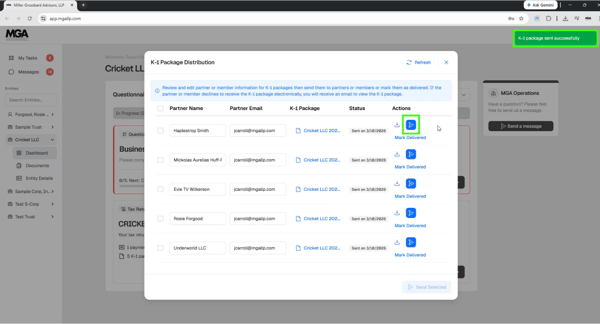
1. Send Individually: Click the "Send" button next to a specific partner or member to send their K-1 package. A green confirmation message will appear in the upper right-hand corner indicating that the K-1 package was sent successfully.
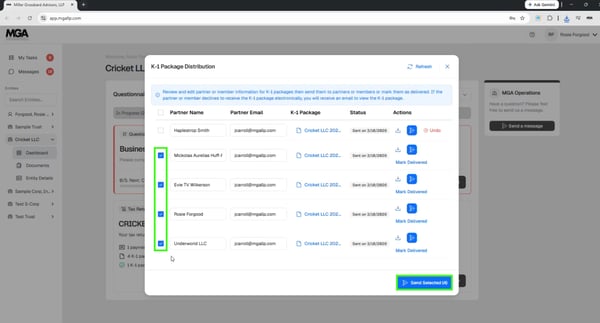
2. Send Multiple at Once: If you would like to distribute several K-1 packages at the same time, select the partners or members you want to send to and click the "Send Selected" button. The system will send the selected K-1 packages simultaneously and display a green confirmation message in the upper right-hand corner showing how many packages were successfully sent.
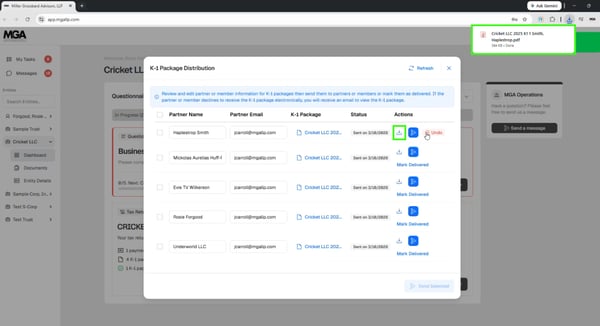
Optional: Download and Send Manually
If you prefer to send the K-1 packages yourself, you can download them directly from the portal using the "Download" button. The system will generate the K-1 package for you, which you can then attach to an email and distribute manually outside the portal.
Step 4: Mark K-1 Packages as Delivered
After sending the K-1 packages you’ll want to mark them as "Delivered" in the system. This ensures that the dashboard accurately reflects which K-1 packages have already been distributed.
Simply click "Mark Delivered" for each remaining recipient once the package has been sent.
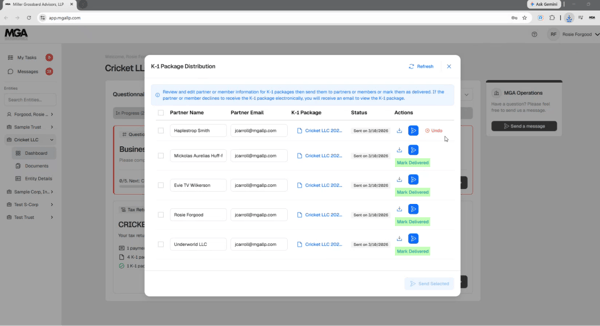
Confirmation on Your Dashboard
Once all K-1 packages have been sent and marked as delivered, your dashboard will show the updated status confirming that the distribution process has been completed. This confirmation lets you know that all partner or member K-1 packages have been successfully distributed.
Have Questions? Please Ask!
We have an incredible team here who is happy to help you with any questions that may come up. Please don’t hesitate to reach out to us with any questions, via email or phone.
As always, we are here to make the complex simple.
.png)