---
title: How to Complete Your Taxpayer Information Form Through Your MGA Client Portal
description: Learn how to complete your Tax Information Form through the client portal with this step-by-step guide, designed to make your tax season smoother and simpler.
image: https://blog.mgallp.com/hubfs/How%20to%20Complete%20Your%20Taxpayer%20Information%20Form%20Through%20Your%20MGA%20Client%20Portal.png
---
[](http://www.mgallp.com)
- [Client Portal](https://app.mgallp.com/)
- [Pay Your Invoice](https://mgallp.com/pay-your-invoice/)
- [What We Do](https://mgallp.com/your-problem-to-solve/)
- [Who We Help](https://mgallp.com/why-we-are-right-for-you/)
- [Insights](https://blog.mgallp.com)
- [Our Team](https://mgallp.com/our-team/)
- [Careers](https://mgallp.com/join-us/)
- [Let’s Connect](https://mgallp.com/contact-us/)
-
-
-
# **How to Complete Your Taxpayer Information Form Through Your MGA Client Portal**

[](http://www.facebook.com/share.php?u=https%3A%2F%2Fblog.mgallp.com%2Fhow-to-complete-your-taxpayer-information-form-through-your-mga-client-portal%3Futm_medium%3Dsocial%26utm_source%3Dfacebook) [](http://www.linkedin.com/shareArticle?mini=true&url=https%3A%2F%2Fblog.mgallp.com%2Fhow-to-complete-your-taxpayer-information-form-through-your-mga-client-portal%3Futm_medium%3Dsocial%26utm_source%3Dlinkedin) [](https://twitter.com/intent/tweet?original_referer=https%3A%2F%2Fblog.mgallp.com%2Fhow-to-complete-your-taxpayer-information-form-through-your-mga-client-portal%3Futm_medium%3Dsocial%26utm_source%3Dtwitter&url=https%3A%2F%2Fblog.mgallp.com%2Fhow-to-complete-your-taxpayer-information-form-through-your-mga-client-portal%3Futm_medium%3Dsocial%26utm_source%3Dtwitter&source=tweetbutton&text=How%20to%20Complete%20Your%20Taxpayer%20Information%20Form%20Through%20Your%20MGA%20Client%20Portal) [](mailto:?subject=Check%20out%20https%3A%2F%2Fblog.mgallp.com%2Fhow-to-complete-your-taxpayer-information-form-through-your-mga-client-portal%3Futm_medium%3Dsocial%26utm_source%3Demail%20&body=Check%20out%20https%3A%2F%2Fblog.mgallp.com%2Fhow-to-complete-your-taxpayer-information-form-through-your-mga-client-portal%3Futm_medium%3Dsocial%26utm_source%3Demail)
4 min read
As part of our commitment to providing accurate, efficient, and value-driven tax services, MGA collects updated taxpayer information each year through our secure client portal.
The Taxpayer Information Form may appear as a Business, Trust, or Individual form, depending on your account. This form is a critical part of our process, as it helps us meet professional due care requirements, reduces the risk of missing important details, and supports thoughtful tax planning on your behalf.
Below is a step-by-step walkthrough to help you complete your form with confidence.
### **Step 1: Watch for an Email Notification**
At the start of the new year, you’ll receive an email with a subject line similar to:
- Please complete the 2025 **Business** Information Form
- Please complete the 2025 **Trust** Information Form
- Please complete the 2025 **Individual** Information Form
The subject line reflects the type of account the form applies to.
Inside the email, click the button provided when you’re ready to begin.
### **Step 2: Log Into Your MGA Client Portal**
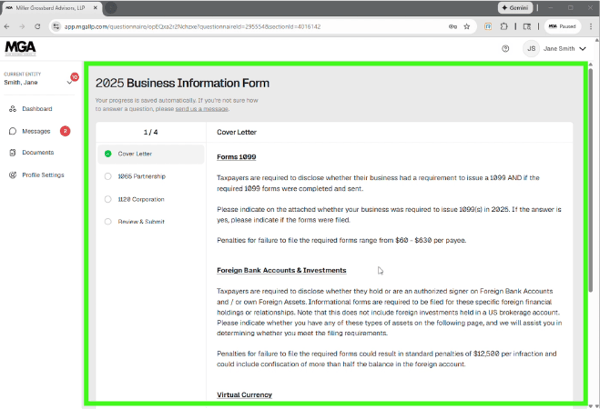
After clicking the button in your email, you’ll be taken straight to your MGA [client portal](https://app.mgallp.com/) login page. Enter your login credentials as usual. Once you’re logged in, the system will automatically open your Taxpayer Information Form, as pictured below, so you can get started right away.
### 
### **Step 3: Verify Your Current Entity**
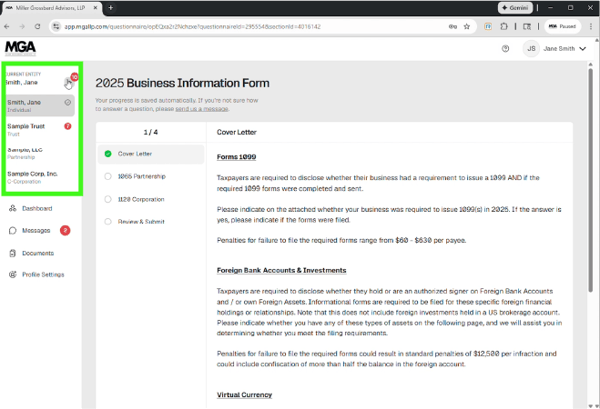
Inside the portal, you’ll see a Current Entity dropdown in the upper left-hand corner, just below the MGA logo.
This shows which entity you’re currently viewing.
If you have access to multiple entities, you can switch between them using this dropdown. Selecting another entity will take you to that entity’s dashboard, where the Taxpayer Information Form should appear front and center if action is required.
### **Step 4: Complete the Taxpayer Information Form **
Begin by reviewing the cover letter at the start of the form, then proceed through each section carefully.
Depending on the form type:
- Business and trust forms will ask for specific entity details
- Individual forms will guide you through a questionnaire
The portal is designed to lead you step by step, and visual cues, such as highlighted or shaking buttons, help draw attention to required sections.
Take your time and answer each section thoroughly.
### **Step 5: Review and Submit**
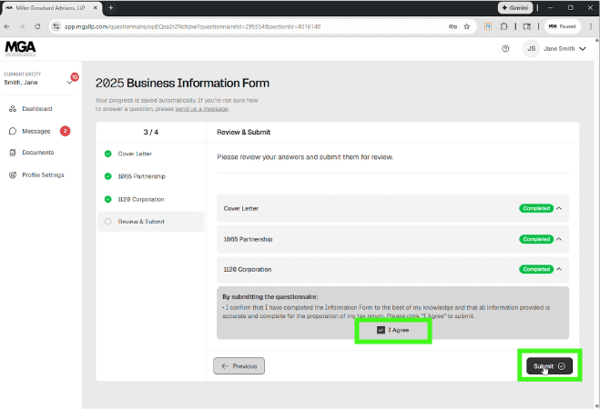
At the Review and Submit stage, you’ll see a summary of your progress. Any incomplete sections will be clearly marked in red, and the form cannot be submitted until all sections are complete.
Once everything is marked complete:
- Check the “I Agree” box
- Click Submit
Your form will then be securely delivered to our team.
### **Final Step: Complete Any Additional Forms**
If you have access to more than one entity, be sure to return to the Current Entity dropdown and complete any additional Taxpayer Information Forms that may be pending.
### Have Questions? Please Ask!
We have an incredible team here who is happy to help you with any questions that may come up. Please don’t hesitate to reach out to us with any questions, via [email](mailto:info@mgallp.com) or [phone](tel:713-622-3960).
As always, we are here to *make the complex simple.*
---
### Stay Connected
Want to stay up to date with our latest blog posts, educational videos, webinars, and more? [**Subscribe for instant notifications**](https://blog.mgallp.com/subscribe-now-instant-notifications) and get new content delivered straight to your inbox.
Prefer a monthly roundup instead? [**Subscribe to our newsletter**](https://blog.mgallp.com/subscribe-now-monthly-newsletter) for valuable insights and resources from our team of experts, all in one place.
And be sure to [**follow us on social media**](https://blog.mgallp.com/follow-mga-on-social-media) for timely updates, expert insights, and exclusive resources to keep you in the loop.
December 22, 2025
Posted in [Client Tutorials](https://blog.mgallp.com/tag/client-tutorials)
### Recent Posts:
[](https://blog.mgallp.com/ready-to-sign-your-tax-return-heres-what-to-know-about-the-irs-required-id-check)
[Ready to Sign Your Tax Return? Here’s What to Know About the IRS-Required ID Check](https://blog.mgallp.com/ready-to-sign-your-tax-return-heres-what-to-know-about-the-irs-required-id-check)
[](https://blog.mgallp.com/how-to-distribute-k-1-packages-through-the-mga-client-portal)
[How to Distribute K-1 Packages Through the MGA Client Portal](https://blog.mgallp.com/how-to-distribute-k-1-packages-through-the-mga-client-portal)
[.png)](https://blog.mgallp.com/how-to-verify-your-identity-to-sign-your-tax-return-once-per-year)
[How to Verify Your Identity to Sign Your Tax Return (Once Per Year)](https://blog.mgallp.com/how-to-verify-your-identity-to-sign-your-tax-return-once-per-year)
[](https://blog.mgallp.com/how-to-review-sign-and-pay-your-tax-return-through-the-mga-client-portal)
[How to Review, Sign, and Pay Your Tax Return Through the MGA Client Portal](https://blog.mgallp.com/how-to-review-sign-and-pay-your-tax-return-through-the-mga-client-portal)
### Let's Connect
### [(713) 622-3960](tel:(713)%20622-3960)
600 N. Shepherd Drive, Suite 200
Houston, TX 77007
Miller Grossbard Advisors, LLP is an independent member firm of [PrimeGlobal](https://primeglobal.net/), an association of independent accounting firms. PrimeGlobal is one of the five largest associations of independent accounting firms in the world, providing a wide range of tools and resources to help member firms furnish superior accounting, auditing, and management services to clients around the globe.
Miller Grossbard Advisors, LLP places strong emphasis on maintaining the highest level of professional excellence. The Firm is a member of the Employee Benefit Plan Audit Quality Center. We maintain a rigorous quality control system to verify that our auditing practices follow both professional and Firm standards.
Copyright © Miller Grossbard 2026. All Rights Reserved. – [Privacy Policy](https://mgallp.com/privacy-policy/)
```json
{
"@context" : "https://schema.org",
"@type" : "BlogPosting",
"author" : {
"@type" : "Person",
"name" : "MGA Team",
"url" : "https://blog.mgallp.com/author/mga-team"
},
"dateModified" : "2025-12-22T14:12:45.686Z",
"datePublished" : "2025-12-22T14:06:47.000Z",
"headline" : "How to Complete Your Taxpayer Information Form Through Your MGA Client Portal",
"image" : [ "https://blog.mgallp.com/hubfs/How%20to%20Complete%20Your%20Taxpayer%20Information%20Form%20Through%20Your%20MGA%20Client%20Portal.png" ],
"mainEntityOfPage" : {
"@id" : "https://blog.mgallp.com/how-to-complete-your-taxpayer-information-form-through-your-mga-client-portal",
"@type" : "WebPage"
},
"publisher" : {
"@type" : "Organization",
"logo" : {
"@type" : "ImageObject",
"url" : "https://blog.mgallp.com/hubfs/MGA%2035%20Logo.png"
},
"name" : "Miller Grossbard Advisors, LLP"
}
}
```